A Native Teleprompter App for Mac, From Desk to Studio
Record straight from your webcam or iPhone with the script right under the lens, read over any app with a floating overlay, or run a full studio with synced prompter windows on every display. Try reading in the free online teleprompter before you download.
Teleprompter Premium+ is a native Apple app that turns a MacBook, iMac or Mac Studio into a real prompter. On a single screen, a floating overlay keeps your script under the camera while you record or present in any app. In a studio, the same Mac drives a hood monitor, a confidence monitor and extra floating windows, all scrolling in sync from one set of controls.
It is one universal app across iPhone, iPad and Mac. With Plus, scripts sync over iCloud, your iPhone or Apple Watch can act as the remote, and voice-following scroll keeps pace with you using Apple's speech recognition, on-device when available. You can start free, and the free online teleprompter on this site lets you try reading before you download.
Try it free in your browser
Open the free online teleprompter, paste a script, press play and set the speed. No download needed.
Multiple displays, perfectly in sync
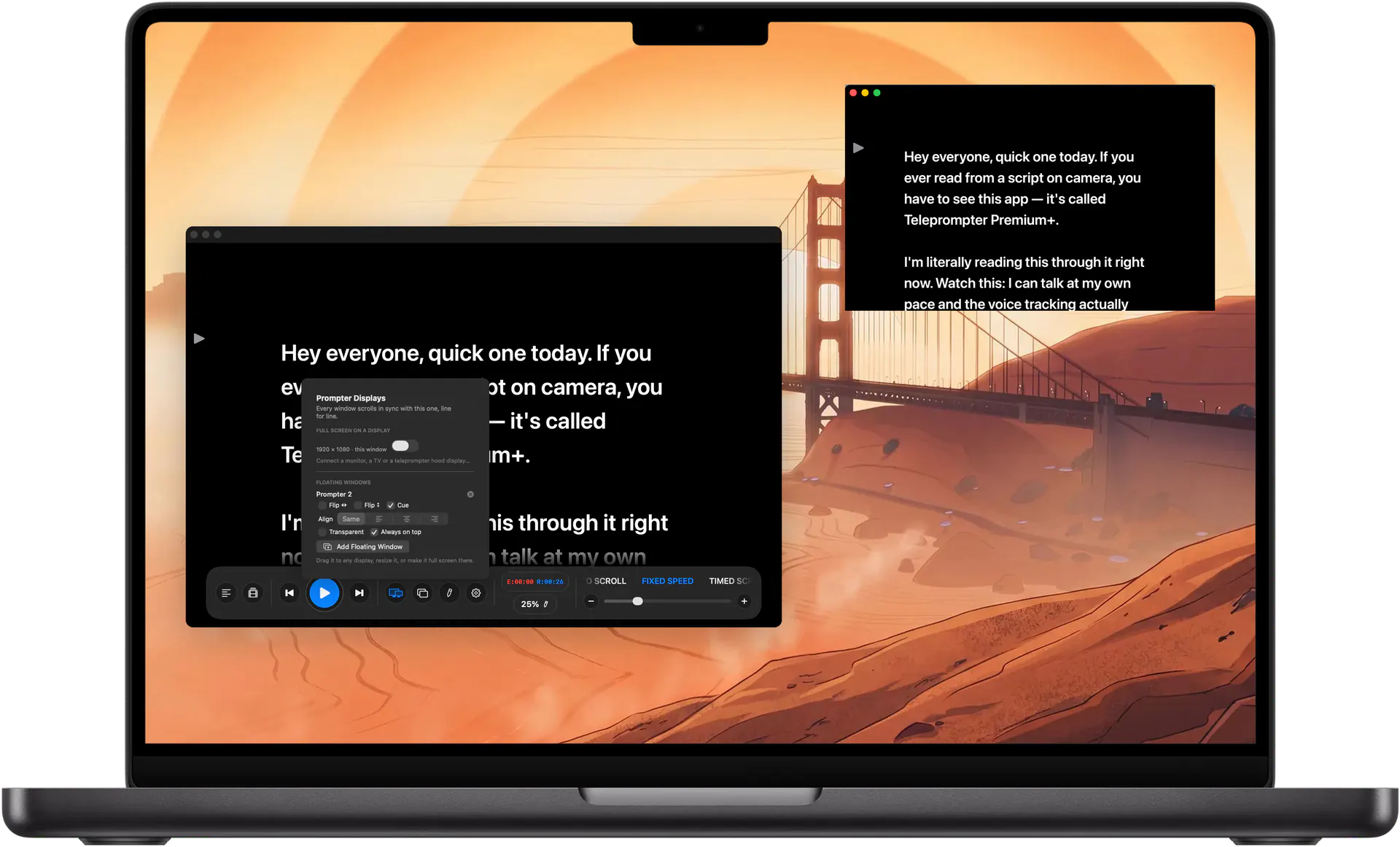
Connect a teleprompter hood monitor, a TV or a second display and assign the prompter to it: the script opens full screen on that display and scrolls with the main window, line for line. Every window lays the text out at the same width and scales it to its own screen, so the words under the reading line are the same on every display, whatever its size or resolution. The operator watches the Mac while the talent reads the hood.
Each display keeps its own settings: flip horizontally, flip vertically or both for beam-splitter glass, choose left, centre or right alignment, and show or hide the cue arrow. Displays are remembered by name, so when you plug the hood monitor back in, its prompter comes back. Need more? Add floating prompter windows, drag them to any screen, resize them, make them full screen, keep them on top, or make them transparent to see what is behind. Multi-display prompting is part of Plus.
Record video on your Mac with the script under the lens
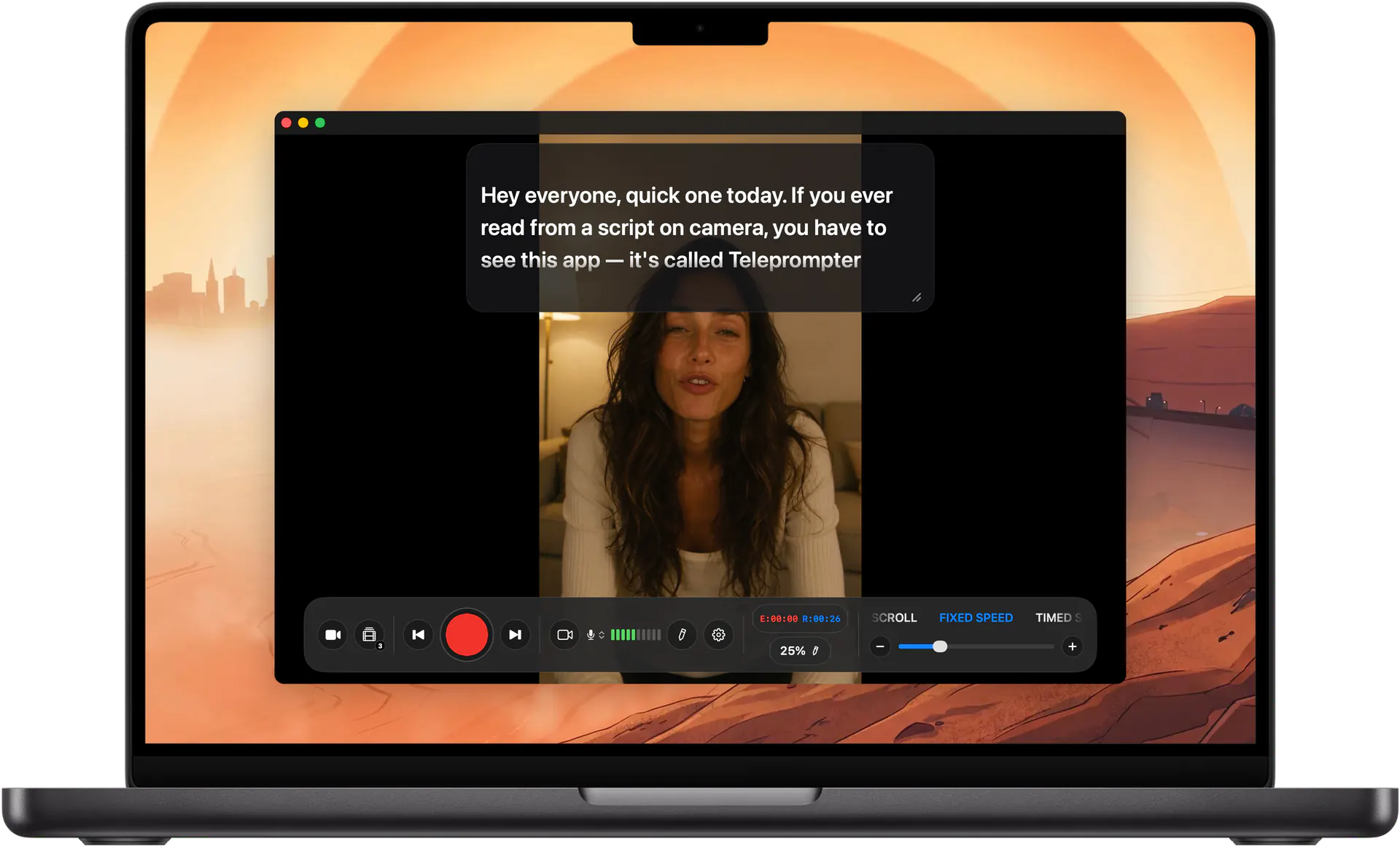
Switch the prompter to Video and your Mac becomes the camera: the script sits at the top of the window, right under the webcam, so your eyes stay near the lens while you read. Press record and the take and the scroll start together after the countdown; press stop and the take is filed next to its script. Use the built-in camera, a USB webcam or your iPhone through Continuity Camera, and pick the microphone you want from the dock. Audio-only takes (Plus) work the same way for voice-overs and podcasts.
Every script keeps its own library of takes. Play them back and save the finished file to any folder, add it to Photos or share it. With Plus, burn AI captions into the video in the style you choose and export without the watermark that free exports carry. Captions are generated from your own voice, so they follow what you actually said on the take.
The floating overlay: prompt over any recording app
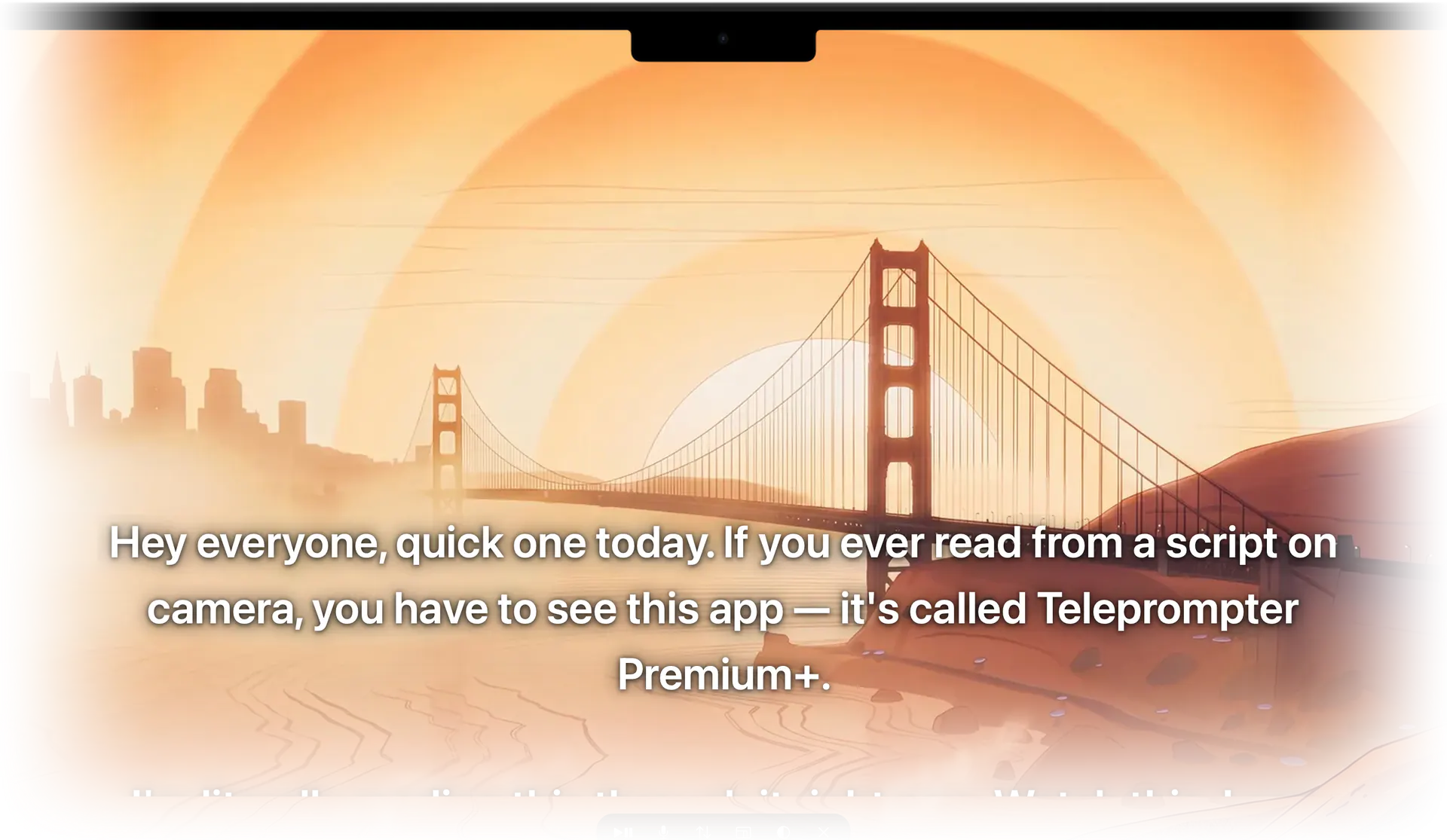
For desk recording, the floating overlay sits as a movable layer over your webcam preview, screen recorder or video call, so your lines stay next to the lens without switching apps. Notch mode (Plus) tucks the script right under the MacBook camera, and Ghost Mode drops the background so only the text floats over your screen.
Scroll vertically or as a horizontal ticker, pause and resume from the overlay itself or from the menu bar, and bring the main window back whenever you need it. It is built for talking-head videos, product demos, webinars and presentations.
Voice-following, fixed speed or timed scroll
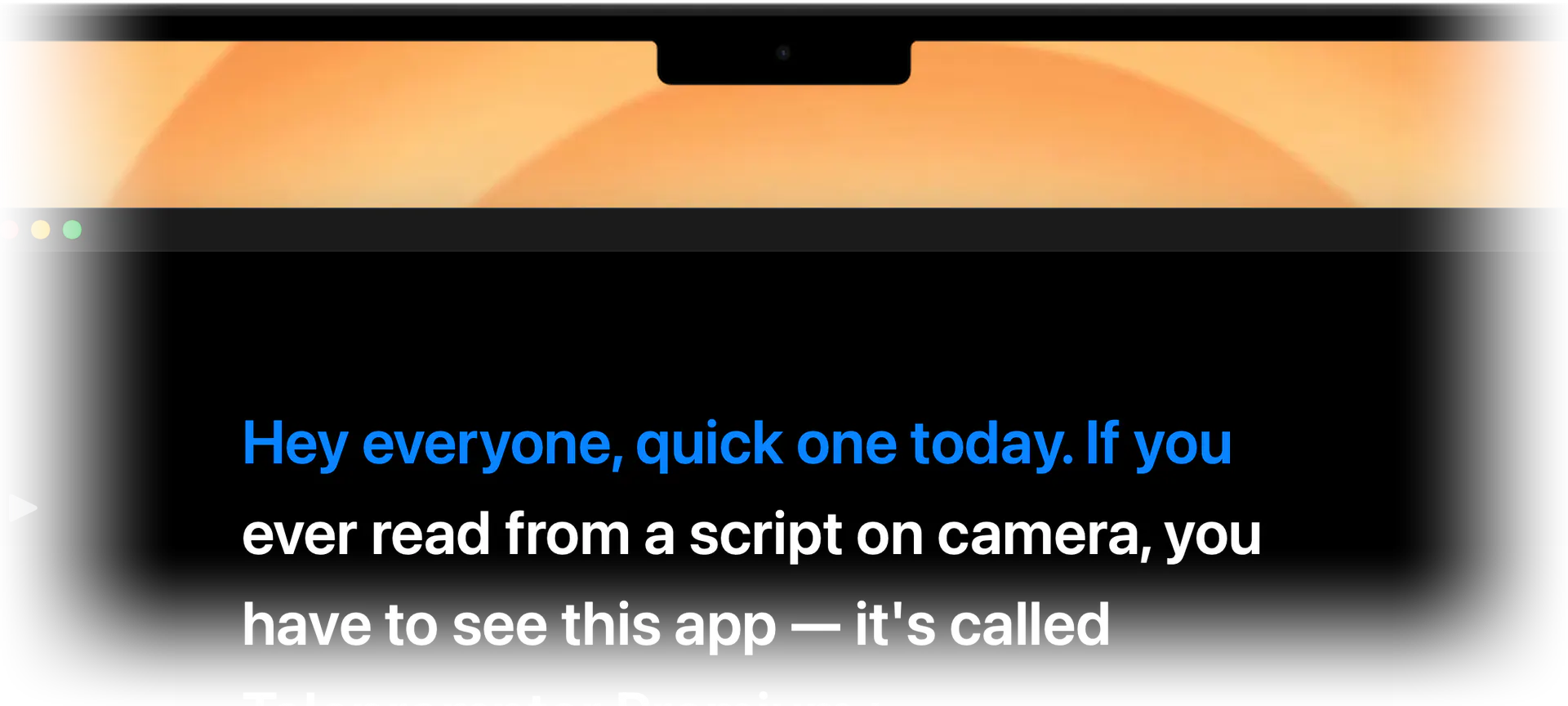
The same dock as on iPhone lets you switch between three ways to move the script. Auto (Plus) follows your voice with Apple's speech recognition, on-device when available: pause to ad-lib and the text waits, pick the pace back up and it keeps up. Fixed runs at a steady speed you set on the ruler. Timed finishes the whole script in the duration you choose, from 15 seconds to 10 minutes, and adjusts the speed to the length of the text.
You can also move the reading line higher or lower on the screen, so the line you are reading sits where your eyes naturally rest, whether you are at a desk or behind a hood.
Remote control from iPhone, iPad, another Mac or a clicker
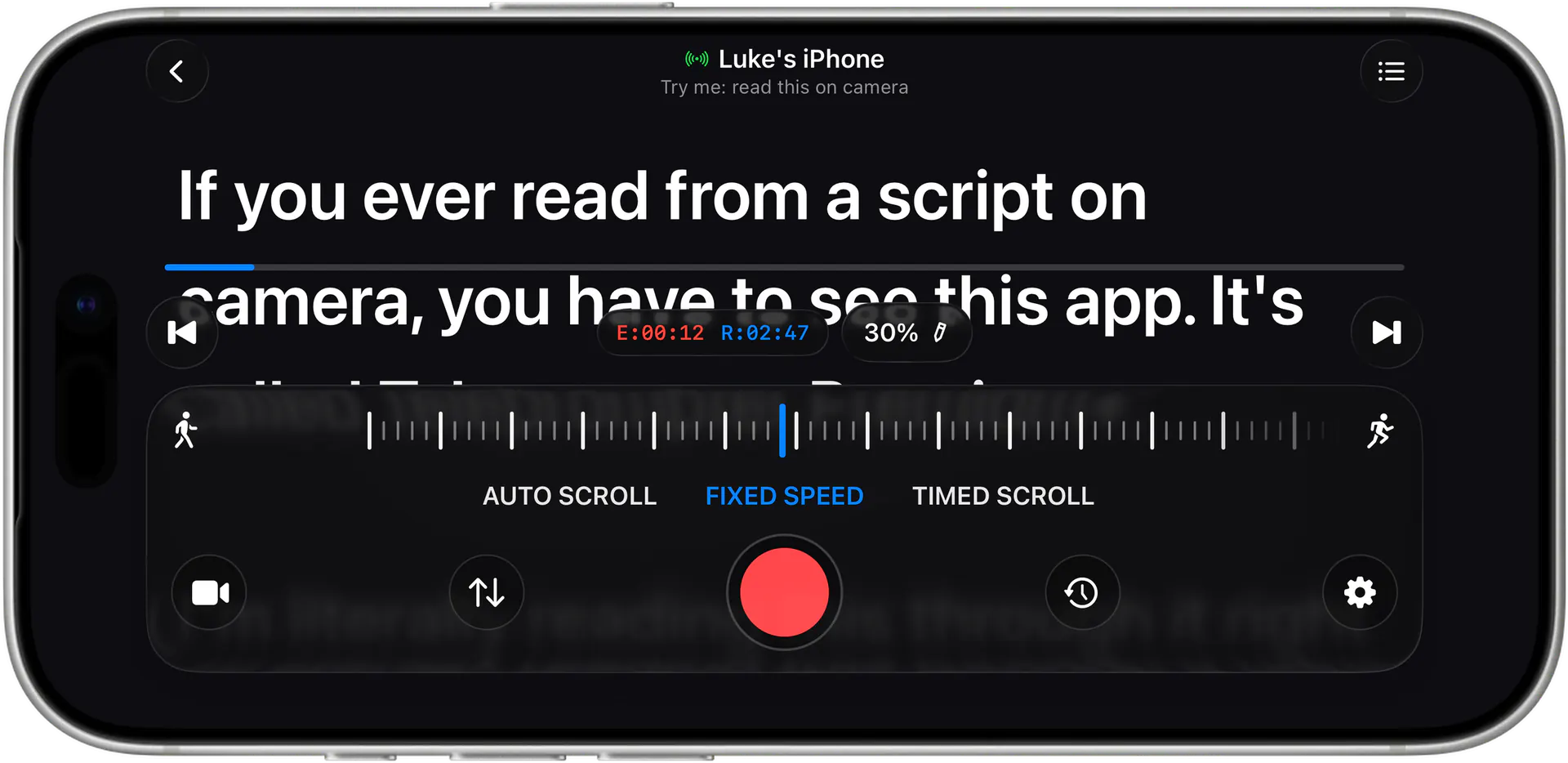
Open Remote Control on your iPhone, iPad or another Mac and it finds the prompter on the same network, no internet needed. Every remote plays, pauses, scrubs, changes speed and mirrors your text settings. From an iPhone or iPad you can also switch between Auto, Fixed and Timed, pick another script from the library and start a recording, and an Apple Watch paired with that iPhone works as a remote too. Remote control is part of Plus.
Presentation clickers, foot pedals, page turners and Bluetooth keyboards work on the Mac as well with Plus: they pair as a keyboard, and their keys play and pause, jump a paragraph, restart, or change the speed. The space bar plays and pauses on every plan.
Write on the web, read on your Mac: the share-by-link flow
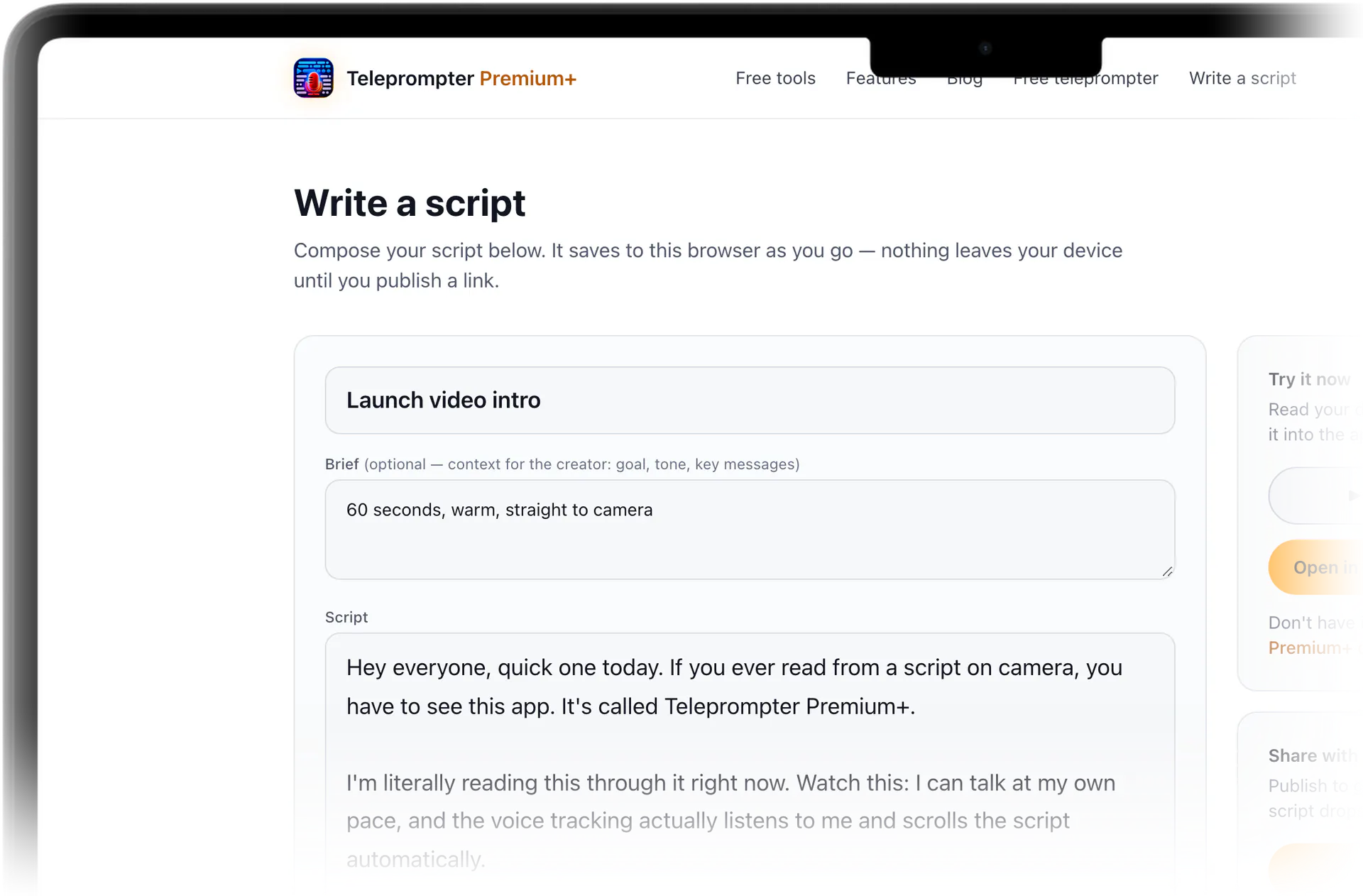
This site includes a free online teleprompter and script editor. Write or paste a script in your browser and share one link: the person who opens it can read the script on the page or open it straight inside the app on their Mac or iPhone.
That is the handoff a lot of teams need: a marketer writes the script, sends one link, and the creator reads it on camera, no copy-paste and no email threads. Sharing can be public or private by email invite, and an AI script review can tighten the wording for spoken delivery before you record.
Tips for a clean desktop or studio recording
At a desk, keep the overlay or the prompter window as close to your camera as you can, so your eyeline reads as natural. Increase the font size until you can read comfortably from your seat, then set the speed a notch slower than you think you need.
Behind a beam-splitter hood, assign the prompter to the hood monitor and flip it for the glass, keep the unflipped view on the Mac for the operator, and use Timed scroll when a segment has to land on an exact duration. A clicker or your iPhone keeps your hands free during the take.
What you get
Synced multi-display prompting
Full-screen prompter windows on any connected display, scrolling in sync with the main window, line for line, with settings remembered per display.
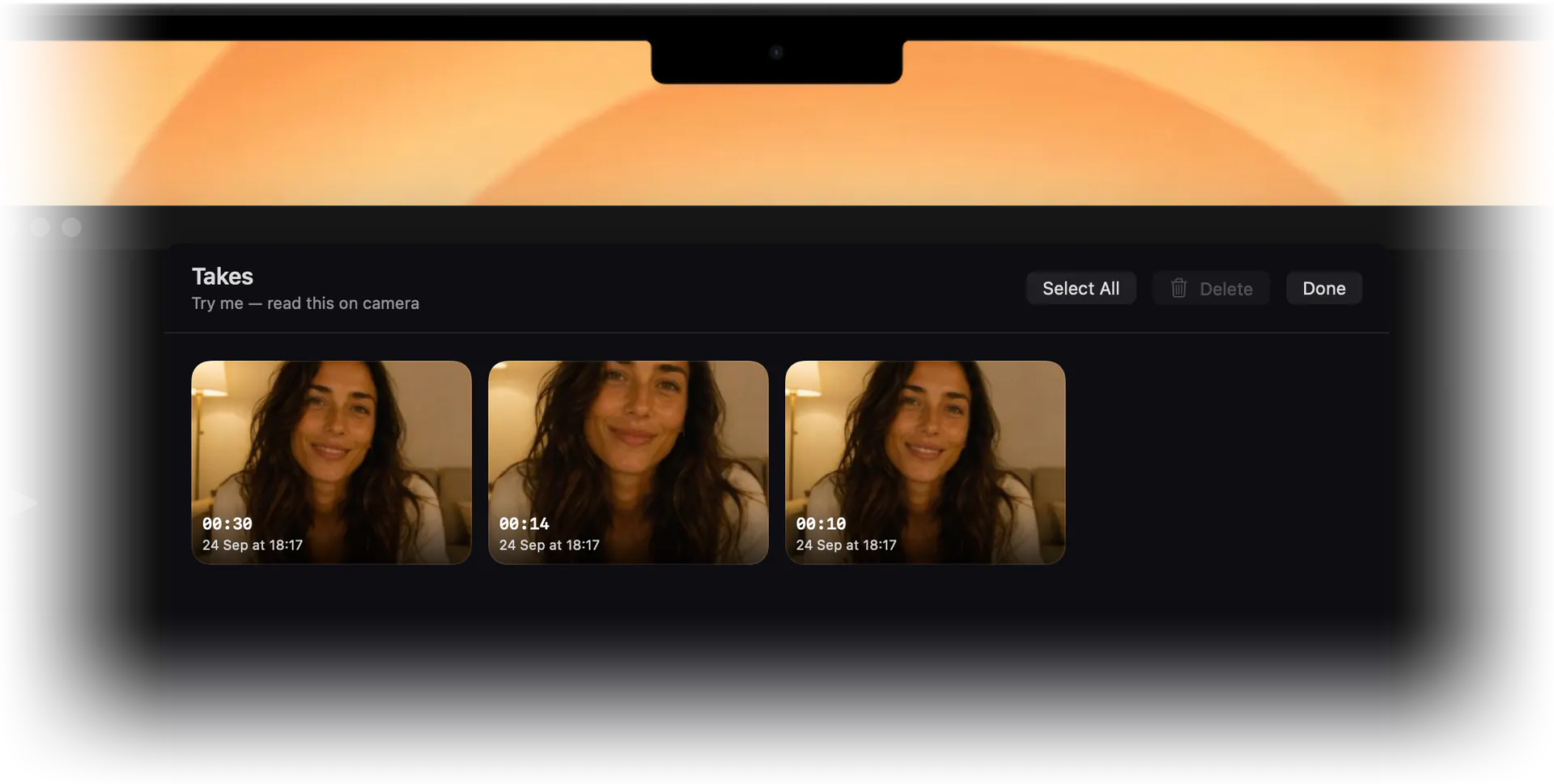
Video and audio recording with takes
Record with your webcam or iPhone while the script stays under the lens, then review takes per script and export to a file or Photos. AI captions and audio takes with Plus.
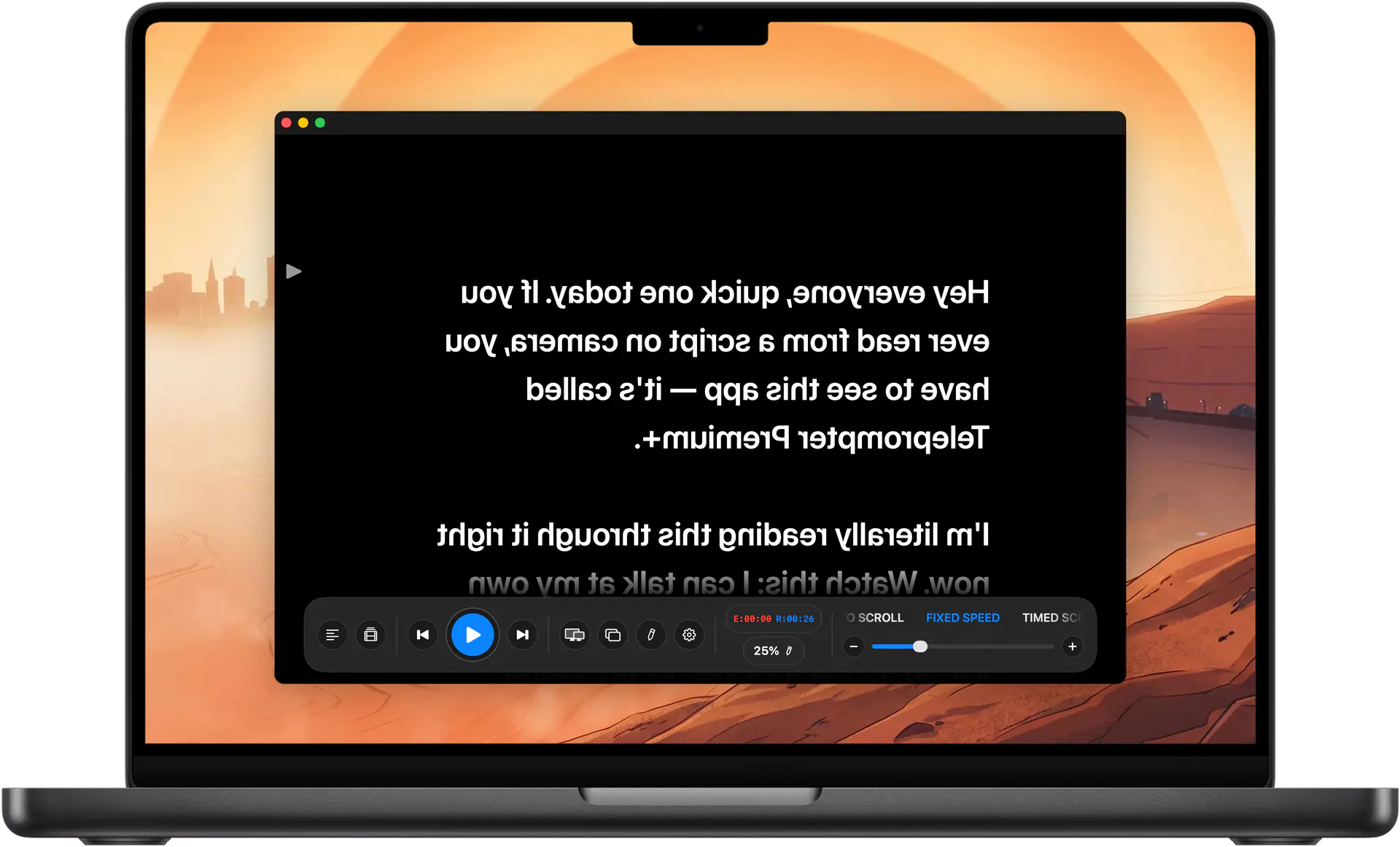
Mirror on both axes, per display
Flip horizontally, vertically or both for beam-splitter hoods, with alignment and cue settings chosen for each screen.
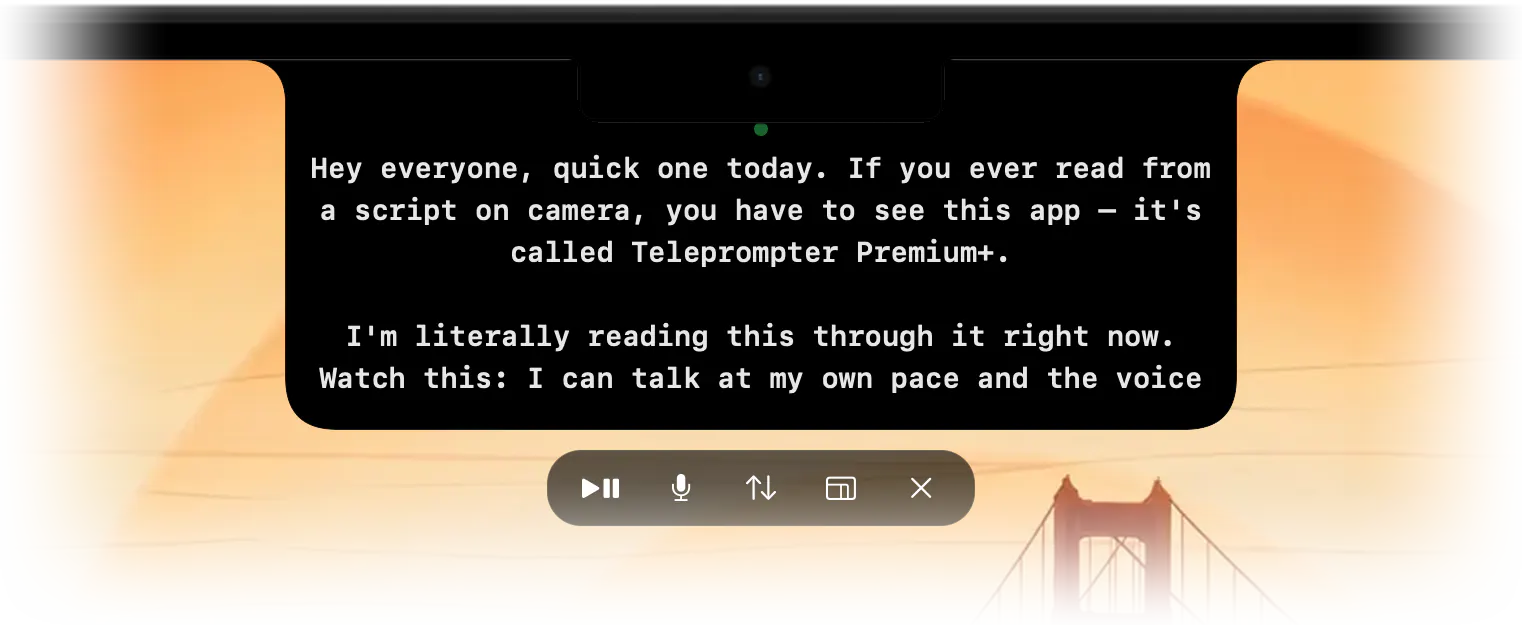
Floating windows and overlay
Extra prompter windows you can place, resize and keep on top, plus a floating overlay with Notch mode and Ghost Mode over any app.
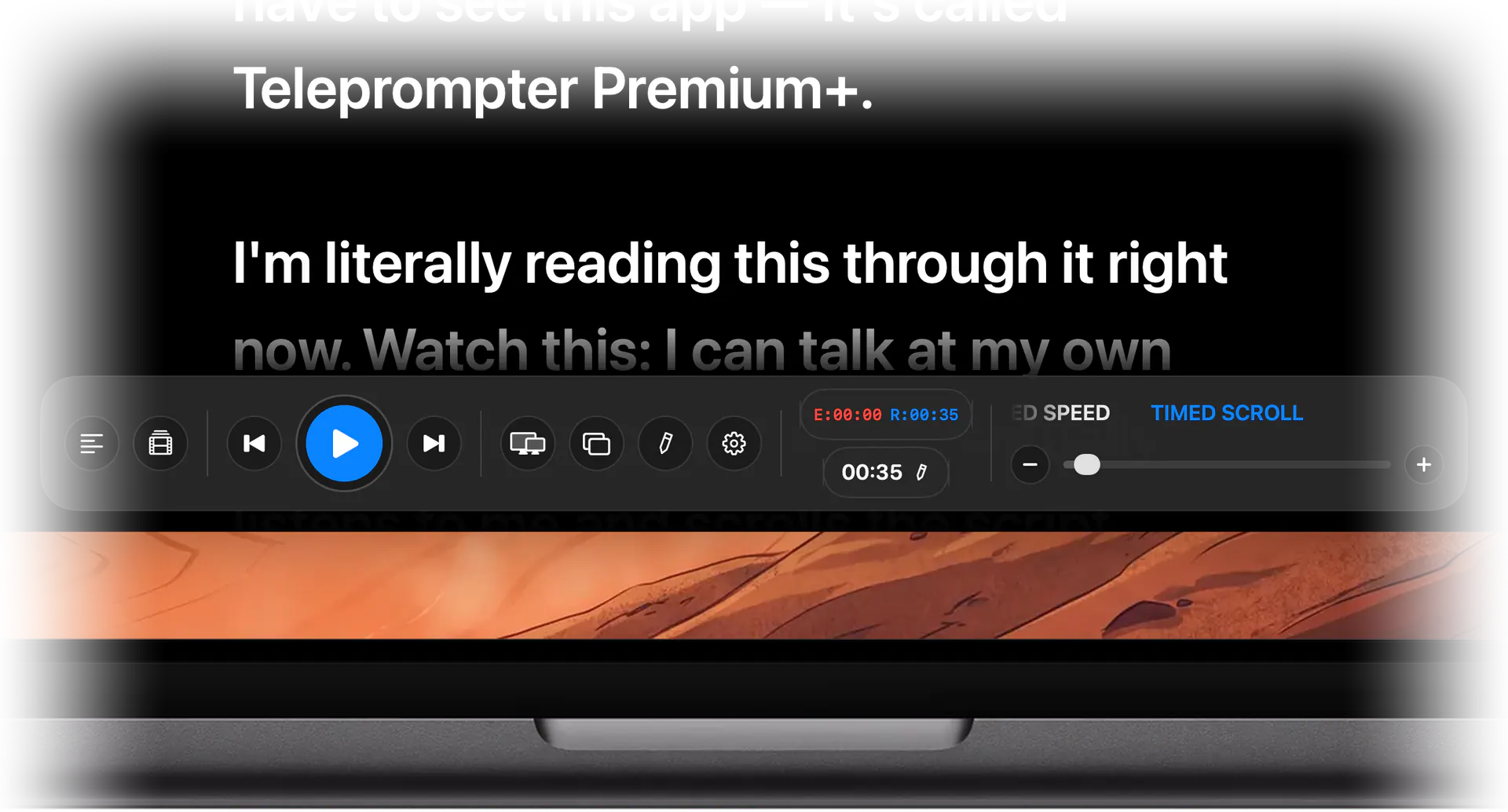
Voice-following, fixed or timed scroll
Follow your voice (Plus), scroll at a set speed, or finish the script in a chosen time. Adjustable reading line position.
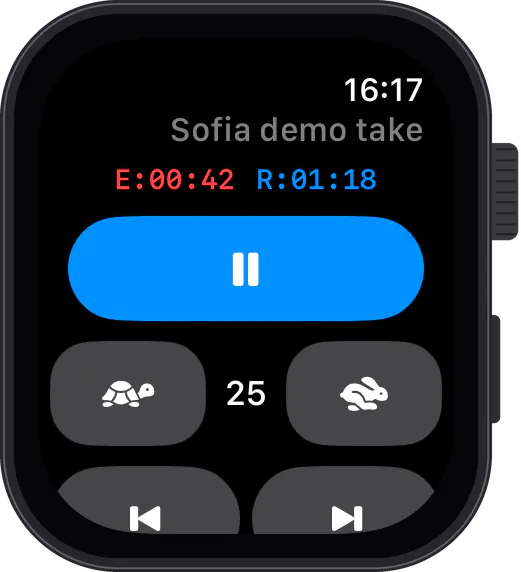
Remote from iPhone, iPad, Mac or clicker
Pair over the same network to drive the prompter from an iPhone, iPad or another Mac, with an Apple Watch through the iPhone, or use a presentation clicker or foot pedal. Part of Plus.
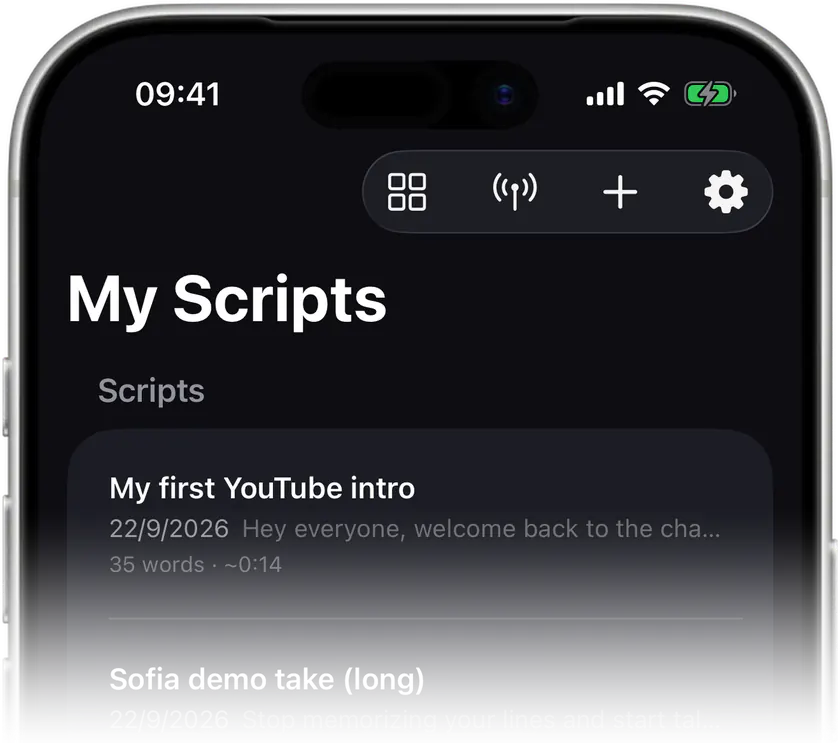
Universal app with iCloud sync
One app for Mac, iPhone and iPad, scripts synced over iCloud with Plus, and a free online editor to write and share scripts by link.
Stop memorizing.Start talking.Download Teleprompter Premium+ now.
Try reading in the free online teleprompter, or download Teleprompter Premium+ to record, prompt over any app, or run a multi-display studio from your Mac.


Free to start · No account
Scan to get it
on your phone
Teleprompter Premium+ for iPhone, iPad, Mac, Apple Watch and Android
Frequently asked questions
- Does the Mac teleprompter support multiple displays?
- Yes. You can assign a full-screen prompter to any connected display, such as a teleprompter hood monitor or a TV, and it scrolls in sync with the main window, line for line. You can also add floating prompter windows and place them on any screen. Multi-display prompting is part of Plus.
- Can I record video on my Mac while reading the script?
- Yes. Switch the prompter to Video to record from the built-in camera, a USB webcam or an iPhone through Continuity Camera, with the script right under the lens. Takes are saved per script and export to a folder or to Photos; with Plus you can add AI captions and drop the watermark.
- Can I use it with a beam-splitter teleprompter hood?
- Yes. With Plus, mirror the text horizontally, vertically or both, separately for each display, so the talent reads correctly through the glass while the Mac keeps a normal view for the operator.
- Can I control the Mac teleprompter from my iPhone or another Mac?
- Yes, with Plus. Open Remote Control on an iPhone, iPad or another Mac on the same network. It plays, pauses, scrubs and changes speed, and an iPhone or iPad remote can also change the scroll mode and switch scripts. Presentation clickers, foot pedals and Bluetooth keyboards work too.
- Does the Mac teleprompter work as a floating overlay over other apps?
- Yes. The floating overlay sits on top of whatever you are recording in, a webcam preview, a screen recorder or a video call, with a Notch mode under the MacBook camera and a Ghost Mode that removes the background.
- Can the teleprompter scroll automatically as I speak, or finish in a set time?
- Both. Auto (Plus) follows your voice with Apple's speech recognition, Fixed scrolls at the speed you set, and Timed finishes the whole script in the duration you choose, from 15 seconds to 10 minutes.
- Is it the same app on Mac, iPhone and iPad?
- Yes, one universal app. With Plus your scripts sync between devices over iCloud, and an Apple Watch can act as a remote through your iPhone.
- Is the Mac teleprompter app free?
- It is free to start: up to 3 scripts and 3 prompter sessions a month, Fixed and Timed scroll, the floating overlay, and video takes that export with a watermark. Plus, as a subscription or a one-time lifetime purchase, unlocks voice-following, multi-display prompting, mirroring, remote control with clickers and pedals, Notch mode, audio takes, AI captions, watermark-free exports, text styling and iCloud sync. Requires macOS 14 or later. You can also try reading in the free online teleprompter on this site at no cost.